

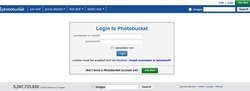
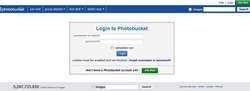
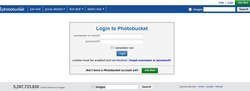
1. Log into your photobucket account or Join photobucket if you do not have an account.
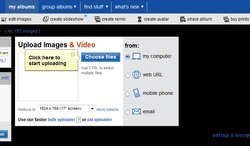
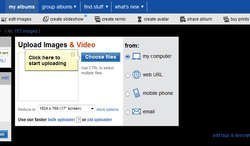
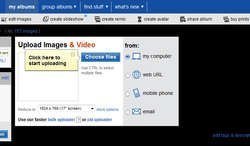
2. In your album you are going to press the "Choose files" button at the top of your album and select the photos from your computer that you want to upload.
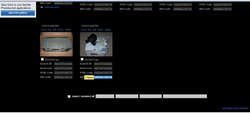
3. After your photo uploads you will then click on the "IMG Code" below the picture you wish to post.
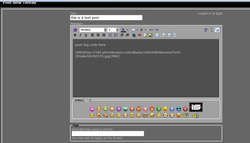
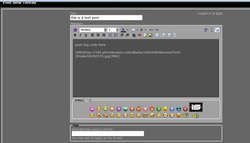
4. In your post on Infiniti Scene you will paste this code in your post.
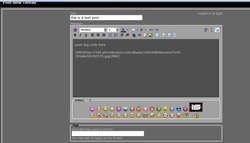
5. After you are done creating your message you will then click "submit new thread"..
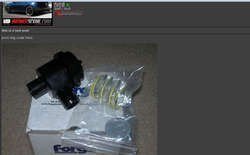
*****Posting an image using  's photobucket feature.*****
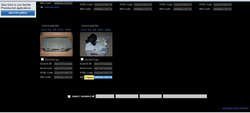
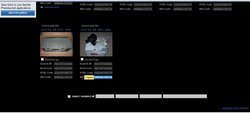
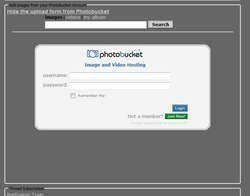
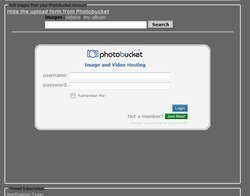
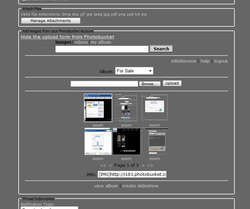
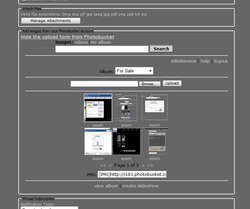
's photobucket feature.*****1. Click on the "Display the upload form from Photobucket" under Additional Options below the posting window and log-in.
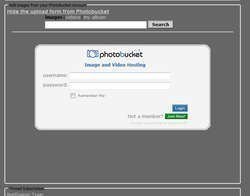
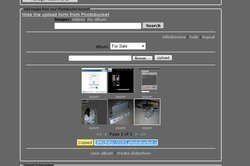
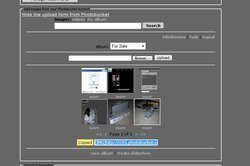
2. Here you will then see some basic features like "browse" and "upload" use this to upload files into your photobucket account if need be.
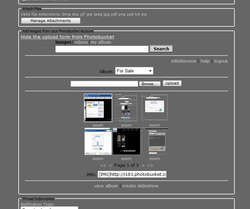
3. After you find the picture you wish to use, press on the picture and a border will appear around the thumbnail of the picture you clicked on. Below the thumbnails you will see an "IMG" code. Click on this img code and "copied" will appear.
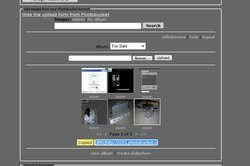
4. Same as going directly to photobucket you will then paste the code in your post.
Using the photobucket feature on only allows you to upload or copy one img or img code at a time. This feature mainly helps if you do not feel like opening another window to grab or upload a photo while posting.
only allows you to upload or copy one img or img code at a time. This feature mainly helps if you do not feel like opening another window to grab or upload a photo while posting.Attachments
-
 1.jpg35 KB · Views: 0
 -
 1.jpg35 KB · Views: 0
 -
 1-1.jpg41.4 KB · Views: 0
 -
 1-1.jpg41.4 KB · Views: 0
 -
 2.jpg41.2 KB · Views: 0
 -
 2.jpg41.2 KB · Views: 0
 -
 3.jpg55.6 KB · Views: 0
 -
 3.jpg55.6 KB · Views: 0
 -
 4.jpg71 KB · Views: 0
 -
 4.jpg71 KB · Views: 0
 -
 5.jpg28.9 KB · Views: 0
 -
 5.jpg28.9 KB · Views: 0
 -
 2-1.jpg46.8 KB · Views: 0
 -
 2-1.jpg46.8 KB · Views: 0
 -
 6.jpg41.2 KB · Views: 0
 -
 6.jpg41.2 KB · Views: 0


